Sales Goals - Sales Goals Tab
The Sales Goals tab is used to view information about sales goals such as the days remaining to complete the sales goals and the average number of vehicles sold per week during the selected time frame.

|
To access the Sales Goals tab, click the |
 (Sales Goals) icon on the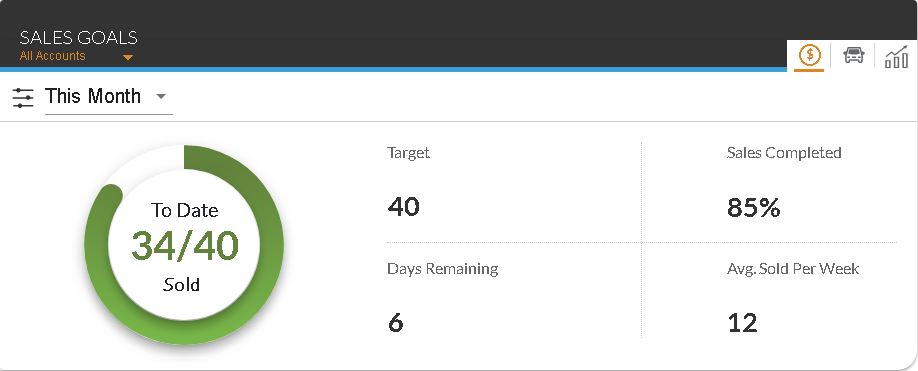
The overall progress toward meeting sales goals can be viewed in the To Date Sold progress indicator. In addition, the time frame for which information displays on this tab can be selected using the unlabeled Time Frame field.
The following fields display on the Sales Goals tab.
To Date Sold: The number of vehicles sold compared to the vehicle sales goal displays. When the sales goal is met, the indicator displays green. Click the progress indicator to display the Cars Sold subsection, where sales information, such as the type of deal, the date of the deal, and the name of the customer, for vehicles sold during the selected time period can be viewed. The following fields display in the Cars Sold subsection.
Vehicle: (Not labeled) The year, make, model, and trim of the vehicle display.
Date Sold: (Not labeled) The date the vehicle was sold displays.
Deal Type: (Not labeled) The type of deal, such as Finance, Cash, or Lease, displays.
Sold To: The name of the customer who purchased the vehicle displays.
Sold By: The name of the salesperson who closed the vehicle deal displays.
Target: The target number of vehicles to sell during the selected time period displays. This goal is defined on the Dealership Goals panel.
Sales Completed: The percentage of vehicles sold compared to the vehicle sales goal displays.
Days Remaining: The remaining number of days during the selected time period displays.
Avg Sold Per Week: The average number of vehicles sold per week during the selected time period displays.
Click here for a list of products that may be mentioned in this help file.